Using a Temporary VHS
When performing a VHS Check, it may be desirable to run a temporary VHS so that data can continued to be collected while the VHS is offline. This topic describes the steps for setting up a temporary VHS and then importing the temporary data back into the original VHS.
Each current value service is configured to report data to an associated production VHS. For example, MYSITE.UIS reports history data to MYSITE.VHS. In addition, other Historians can be configured to replicate data to a particular VHS, as shown in the following diagram:
|
Using a Temporary VHS example |
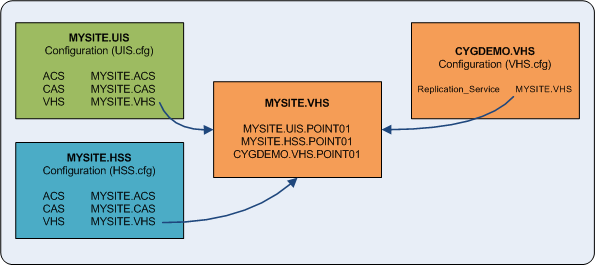
To eliminate the need to change many configuration files and reduce the risk of error, best practice recommends that you create a temporary VHS and let the temporary VHS assume the identity of the original production VHS during its tenure. Once the original VHS is returned to operation, the data in the temporary VHS can be imported into the production VHS.
Create a Temporary VHS, Revert to Original VHS, and Import Data to Original VHS
The following steps assume the name of the VHS and its folder are VHS.
To Create and Start a Temporary VHS
- Use CygNet Explorer to stop the original VHS.
- Use Windows Explorer to rename the VHS folder: Rename the VHS folder to VHSORIG.
- Create a new VHS folder:
- Using Windows Explorer, create a new folder in CygNet\Services and name it VHS. The service in this folder will be used for data collection during the outage.
- Copy the executable (Vhs.exe) and configuration file (Vhs.cfg) from VHSORIG into VHS.
- Use a text editor to edit the Vhs.cfg file in the VHS folder: Assign the service a unique port number. This will be required when running both VHSs. The default port number of the VHS is 6016. For example, use port number 7016, if it is available.
- Use CygNet Explorer to restart the VHS. Data will now be written to the new VHS.
To Check VHSORIG
- Perform the required checks on VHSORIG using VHS Check.
To Reinstate the Original VHS
- Use CygNet Explorer to stop the temporary VHS.
- Use Windows Explorer to rename the VHS: Rename the VHS folder to VHSTEMP.
- Use a text editor to edit the Vhs.cfg file in the VHSTEMP folder: Rename the service to VHSTEMP.
- Use Windows Explorer to rename the original VHS folder: Rename the VHSORIG folder to VHS.
- Use CygNet Explorer to restart the VHS. Data will now be written to the original VHS.
To Import Data from VHSTEMP to VHS
- Use CygNet Explorer to:
- Add VHSTEMP to the ARS.
- Add VHSTEMP to the RSM.
- Start VHSTEMP using the RSM.
- Run the VHS Import/Export utility (VHSImportExport.exe in CygNet\Utilities).
- Set the Source to VHSTEMP.
- Set the Destination to VHS.
- Do not use any limit options.
To Verify the Data
You can use any number of tools to verify that the data from VHSTEMP was imported into VHS:
- Browse the data using CygNet Explorer
- Export the data using CygNet Excel Export or CygNet Export
- View the data on a trend using the Trend Tool
To Delete the Temporary VHS
Once data verification is complete, delete the VHSTEMP from the RSM and the ARS, and delete the service folder. If you want to keep the service for future use, use Windows Explorer and delete all files from the VHSTEMP folder except Vhs.exe and Vhs.cfg.
- Use CygNet Explorer to stop the temporary VHSTEMP.
- Remove it from the system: Delete the VHSTEMP from the RSM and the ARS.
- Use Windows Explorer to delete the VHSTEMP folder.


